LG TV
How to Connect a Remote App to Your LG TV
A complete walkthrough of pairing, pointer mode, and hidden features.
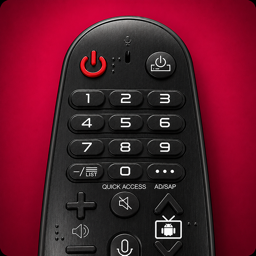
Misplaced the Magic Remote again? RemoteWave brings cursor-style pointing, a full D‑pad, quick input switching, and a real keyboard for webOS login screens — all from the phone already in your hand.
Free to download on Google Play · link will be added here once available · View Privacy Policy · View Terms of Use

See the remote, media controls, and Private Listening screens in action before you download.


Glide a cursor around webOS menus with your phone's screen as a trackpad — the same idea as LG's Magic Remote, without needing the remote.
Prefer buttons over pointing? Switch to a standard directional pad for precise, click-by-click navigation any time.
Jump straight to HDMI 1, 2, or 3 (or any connected source) from a dedicated input picker instead of cycling through them one at a time.
Log into streaming apps and search for titles using your phone's own keyboard instead of hunting letters with a cursor.
Adjust volume, mute, play, pause, and skip without ever touching the TV's built-in remote.
Pin your most-used streaming apps for quick launching straight from the remote screen, without digging through webOS menus.
Connect your phone to the same Wi‑Fi network your LG TV is using.
Launch the app — it automatically scans your network for compatible LG TVs.
Tap your TV's name from the list of discovered devices.
Accept any on-screen PIN or pairing prompt shown by webOS, and your phone becomes a working remote.
Your phone is already always within reach — it doubles as a pointer-style remote without a second device to misplace.
Typing emails and passwords with a real keyboard is quicker than selecting each character with a cursor.
Pair with multiple LG Smart TVs and switch between them from the same app.
RemoteWave works entirely over Wi‑Fi you already have — nothing new to buy, pair, or charge.
When prompted, allow RemoteWave’s Nearby devices (or Location, on older Android versions) permission — this is how it finds your LG TV on Wi‑Fi.
Check that your phone's Wi‑Fi matches the network your LG TV is connected to under its network settings.
RemoteWave lists every compatible LG TV found on the network within a few seconds.
Accept the on-screen webOS prompt once — RemoteWave remembers your TV for future sessions.
Confirm your phone and TV share the same Wi‑Fi network and that it isn't a guest network with client isolation enabled, which blocks devices from seeing each other. On the TV, check that network standby or quick-start features haven't put its Wi‑Fi radio to sleep, then reopen the app to scan again.
This is usually a weak Wi‑Fi signal near the TV or a router that puts idle devices to sleep. Moving your router closer, switching to the 5GHz band, or disabling aggressive power-saving on your network usually resolves intermittent drops.
Make sure a text field is actively selected and focused on the webOS screen before typing — tap it once with the pointer or D‑pad first. If keystrokes still don't land, back out to the home screen and reopen the streaming app's login page before trying again.
Pointer movement is sent over Wi‑Fi, so a busy or distant network connection can make the cursor feel delayed. Try moving closer to your router, closing other apps competing for bandwidth, or switching to D‑pad mode for more predictable, click-based navigation.
RemoteWave finds your LG webOS TV by discovering it on your phone's Wi‑Fi radio, which Android treats as a device-discovery capability rather than a single named toggle:
No separate internet connection is required to use the remote:
A handful of causes account for most connection drops:
For the most reliable connection to your LG webOS TV, yes:
Yes. Most VPN apps route all traffic through an external server, which blocks the direct Wi‑Fi path RemoteWave needs to reach your LG webOS TV:
RemoteWave is built to need as little as possible:
A complete walkthrough of pairing, pointer mode, and hidden features.
The most common reasons remote apps fail to find a TV.
Small features that make everyday remote use noticeably faster.