Chromecast Remote & Google TV
Navigate menus, cast media, and type with your phone's keyboard on any Chromecast or Google TV device.
- Full D‑pad & touchpad navigation
- On‑screen keyboard for fast typing
- Volume & playback controls
RemoteWave replaces the remote you keep losing in the couch cushions. Point, tap, and type — pair your phone in seconds and control Android TV, Chromecast, LG TV, Roku, or Fire TV over your home Wi‑Fi.

Every TV platform behaves differently under the hood, so instead of one bloated app, we built a focused app for each ecosystem. Pick the one that matches your TV.
Navigate menus, cast media, and type with your phone's keyboard on any Chromecast or Google TV device.
The universal remote for any TV running Android TV OS — Sony, TCL, Hisense, Philips, and more.
Not a remote — a caster. Send photos, videos, and your phone's screen to any Chromecast TV.
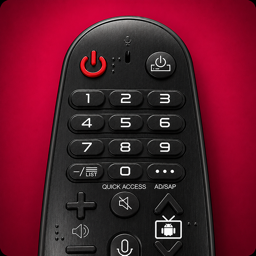
A dedicated remote for LG webOS smart TVs, built around Magic Remote-style pointer control.
Control any Roku TV or Roku streaming stick with instant channel shortcuts and private listening.
Everything the Fire TV Stick remote does — navigation, playback, and app launching — from your phone.
Full D-pad, keyboard, and Smart Hub shortcuts for Tizen-powered Samsung Smart TVs.
Full D-pad, keyboard, and SmartCast Home shortcuts for any Vizio SmartCast smart TV.
Full D-pad, keyboard, and app launcher shortcuts for Hisense VIDAA smart TVs.
One app that works whether your TCL Smart TV runs Roku TV or Google TV.
Touch navigation, keyboard, and playback control for tvOS — no Siri Remote needed.
We designed RemoteWave around the three things people actually complain about with lost or broken remotes: reliability, speed, and simplicity.
RemoteWave talks to your TV directly over your local network — no lag, no waiting for a cloud round trip just to press "play."
We only request the permissions each app genuinely needs to find and control your TV. No unnecessary data collection, ever.
Every layout mirrors what you already know — D‑pad, volume, home, back — so there's nothing new to learn.
No generic "universal remote" compromises. Each app is purpose‑built for how its TV platform actually works.
Smart TV software changes constantly. We ship regular updates so RemoteWave keeps working as platforms evolve.
Download and start controlling your TV right away. No credit card required to try the core remote features.
Switch between a classic directional pad or a swipe‑based touchpad, whichever feels more natural for the platform you're using.
Enter passwords, search terms, and login details using the keyboard you already know instead of hunting-and-pecking with arrow keys.
Play, pause, skip, rewind, mute, and adjust volume with the same one‑tap simplicity as your original remote.
Turn the TV on or off and jump straight to HDMI 1, HDMI 2, or any other input without cycling through menus.
Jump straight into your streaming apps or favorite channels with one‑tap shortcuts instead of scrolling through a home screen.
RemoteWave scans your Wi‑Fi network and lists compatible TVs automatically, so pairing takes seconds, not minutes.
The exact pairing screen varies slightly by platform, but the overall flow is the same across every RemoteWave app.
Choose the RemoteWave app that matches your TV — Android TV, LG, Roku, or Fire TV.
Make sure your phone and TV are connected to the same home Wi‑Fi network.
Open the app, select your TV from the list, and confirm the on‑screen pairing code if prompted.
Your phone becomes a full remote instantly — no extra hardware, no dongles required.
Not sure which app fits your setup? Check the device compatibility FAQ or visit each app's page for a full supported‑device list.
"My toddler destroyed our Roku remote and this saved us before movie night. Setup took less time than making popcorn."
"Typing my Wi‑Fi password on the actual LG remote was miserable. Now I just use my phone keyboard. Simple as that."
"Connects to my Fire TV Stick almost instantly every time. It's become the default remote in our house."
*Representative feedback. Individual results and ratings may vary by device and app store.
A complete walkthrough of pairing, navigation, and the features most people miss.
Troubleshooting steps for pairing issues, dead batteries, and unresponsive Roku remotes.
The most common reasons remote apps fail to find a TV — and how to fix each one.